
Test-case drafts
Prepare test-case drafts from requirements. Learn how document extraction, OCR, source review and spreadsheet exports fit into a review workflow.
Draft test cases →- No account or installation
- Copy or download results
- Documents processed in your browser
File sizes and generation counts have limits. Check the limits shown in each tool.
Worked example · fictional specification
Turn login requirements into executable cases
The completed requirement template contains six login and password-change rules with separate conditions, actions and expected outcomes. The table is a reviewed example prepared before execution.
1. Enter the specification
requirements-example.xlsx / requirements-example.pptx
2. Read the result
Attach the completed example, extract requirements and generate TCs from the included items. Compare drafts with the source, then add your test account, steps and screen locations. Error messages shown here belong to this sample specification; do not copy them into unrelated requirements.
| Feature | Condition (Korean sample) | Action (Korean sample) | Expected outcome (Korean sample) |
|---|---|---|---|
| 로그인 | 등록된 이메일과 올바른 비밀번호 입력 | 로그인 버튼 클릭 | 홈 화면으로 이동 |
| 로그인 | 비밀번호가 일치하지 않음 | 로그인 버튼 클릭 | 로그인 정보를 확인해 주세요 메시지 표시 |
| 로그인 | 이메일을 입력하지 않음 | 로그인 버튼 클릭 | 이메일을 입력해 주세요 메시지 표시 |
| 비밀번호 변경 | 현재 비밀번호가 일치하고 새 비밀번호 확인값이 일치함 | 변경 버튼 클릭 | 비밀번호 변경 완료 메시지 표시 |
| 비밀번호 변경 | 현재 비밀번호가 일치하지 않음 | 변경 버튼 클릭 | 현재 비밀번호를 확인해 주세요 메시지 표시 |
| 비밀번호 변경 | 새 비밀번호와 확인값이 일치하지 않음 | 변경 버튼 클릭 | 새 비밀번호가 일치하지 않습니다 메시지 표시 |
View the actual tool screen
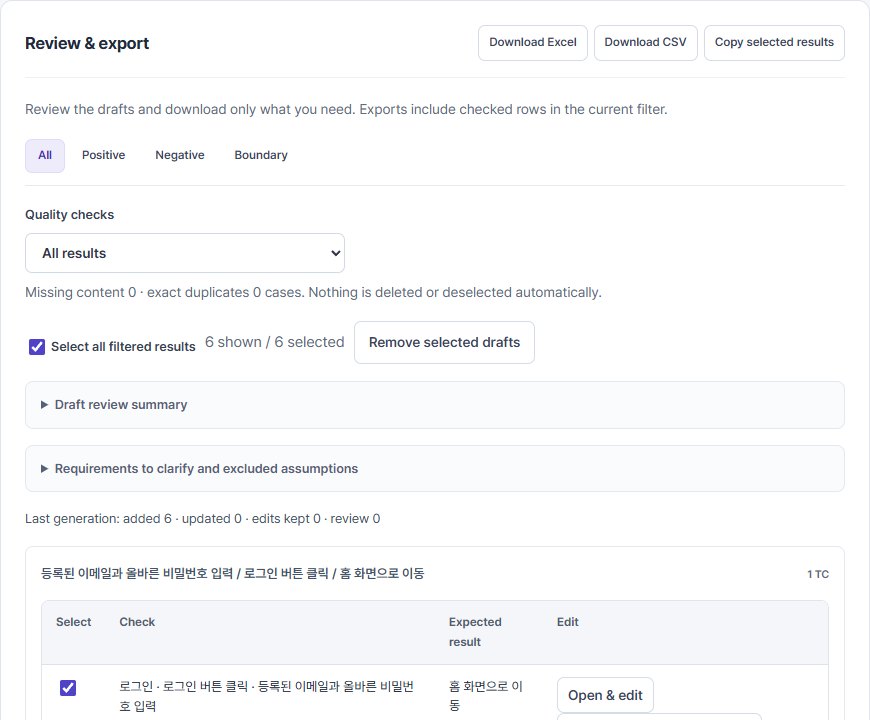
3. Prepare the execution cases
Check for titles or notes misread as requirements and for missing outcomes. Generating all six sample cases does not establish full coverage for a real service. Add password-length or lockout cases only when their policies are defined.
The workbook includes input assumptions, cases and blank actual-result fields. It is not a record of successful service tests. Workbook contents are in Korean.
Written by QA Workbench · checked 8 October 2026. Boundary values, feasible pair coverage and the six template fields are compared against the current tools; execution against a real service is outside this example.
Document support and extraction limits
Starting from a document
Choose a document under Specification file and select Extract requirements. Recommended items are preselected. Edit or exclude titles and notes, then generate drafts from the selected requirements. Use the document range option to read only the pages, slides or sheets you need.
Edit extracted fields
Expand a requirement to edit its feature, condition, action, expected result and rules. Compare it with the source and review notes, then select Apply field edits. Pending edits are included in Save all work, but must be applied before generating TCs. Undecided policies and missing expected results still need review.
Excel structure and sources
Excel columns are mapped to feature, condition, action and expected result, with sheet and cell references. Merged feature names apply within their merged range. Merged conditions or results and unclear headers need review. Titles, notes and change history are separated from requirements. Formulas are not recalculated; dates and percentages may appear as raw numbers.
Image and flowchart limits
OCR extracts text; it is not AI semantic summarization. Small text, low resolution and complex layouts can cause omissions or misrecognition. Flowchart connections are proposals: compare branch labels and arrow directions with the original. OCR processes up to 10 pages or images at a time.
Export and data handling
Select the drafts you need, export to Excel or CSV, or copy them into your existing workflow. Documents and results are processed in the browser without sending them to an external AI service. Drafts do not guarantee complete test coverage or correct interpretation of every requirement.